
In this guide you will learn what image rotation is when to use it and how to rotate images correctly without affecting their quality.
What Does It Mean to Rotate an Image?
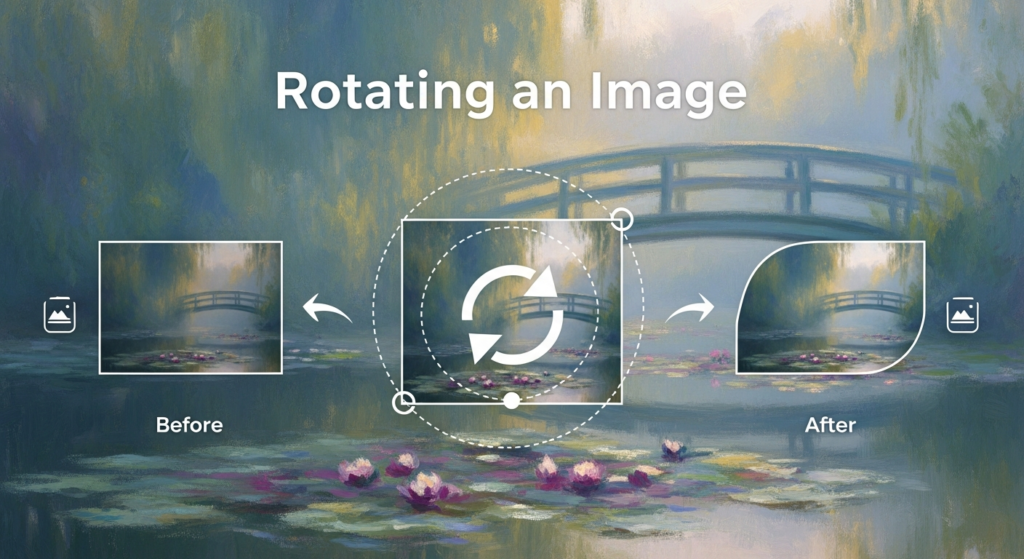
Rotating an image means turning it around its centre to change its orientation. The content of the image stays the same only the direction changes.
- 90° right
- 90° left
- 180° (upside down)
- Custom angles (slight tilt corrections)
Why You May Need to Rotate an Image
- Text in images is not straight
- Product photos look off balance
- Horizon lines look slanted
- Mobile photos show wrong orientation on desktop
- Scanned documents are tilted
- Photos appear sideways after upload
When to Rotate vs When to Straighten
Rotate Turns the image in fixed steps like 90° or 180°
Straighten Adjusts the angle slightly (like 2° or 5°) to fix tilt
How to Rotate an Image (Basic Steps)
- Open or upload the image
- Select the rotate tool
- Choose rotate left or right
- Apply the change
- Save the image
Rotating Images on Different Devices
On Desktop
Most images viewers and editors include a rotate button. You can rotate photos in seconds and save them without needing extra software.
On Mobile
Most phone gallery apps also have a built in rotate feature. Tap top rotate image until it looks right way then save it.
Online Tools
Web based editors let you upload, Rotate and download quickly useful when working across devices.
Common Mistakes to Avoid
- Ignoring background alignment
- Over editing or low quality images
- Forgetting to fix slight tilt after rotation
- Saving over the original file
Final Thoughts
Rotating an image is a small step that can make a big difference. Proper orientation improves readability and overall visual quality.