
Today digital world sharing documents in PDF format has become a standard practice. Whether you’re submitting assignments, sending business documents, or organizing personal files, PDFs are professional, secure, and universally accepted.
But what if your files are in JPG, PNG, or other image formats?
That’s where an Image to PDF Converter becomes essential.
With our Tools Club Kit online Image to PDF tool, you can quickly convert your images into a clean, high-quality PDF document without installing any software.
What Is an Image to PDF Converter?
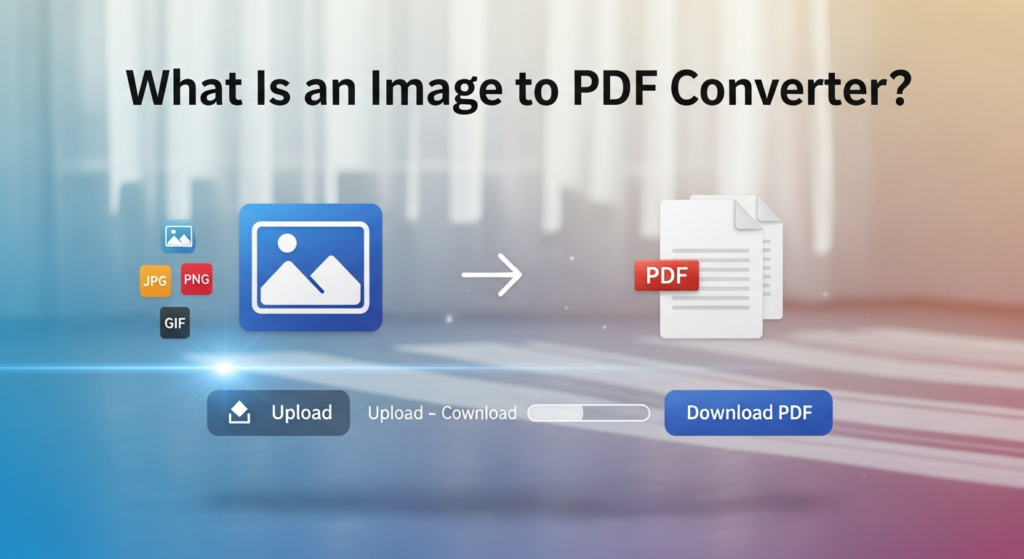
An image to PDF converter is a tool that changes image files into a PDF document. Instead of sending separate image files you can keep them in a single file that works the same way on almost every device.
1. JPG to PDF
2. PNG to PDF
3. GIF to PDF
4. TIFF to PDF
5. HEIC to PDF
Why need Convert Images to PDF?
-
PDF files look more official and structured compared to image files.
-
Most businesses, schools, and institutions prefer documents in PDF format.
-
You can merge several images into one single PDF file.
-
PDF files can be password-protected for extra security.
-
PDF maintains formatting and layout when printed.
- Making documents ready for printing.
When Image to PDF Conversion Is Most Useful
- Making portfolios.
- Preparing files ready for printing.
- Storing image-based records for future use.
- Uploading documents to official websites.
- Sending homework or assignments.
- Sharing receipts or invoices.
- Submitting ID or verification documents.
How to Convert Images to PDF (Basic Steps)
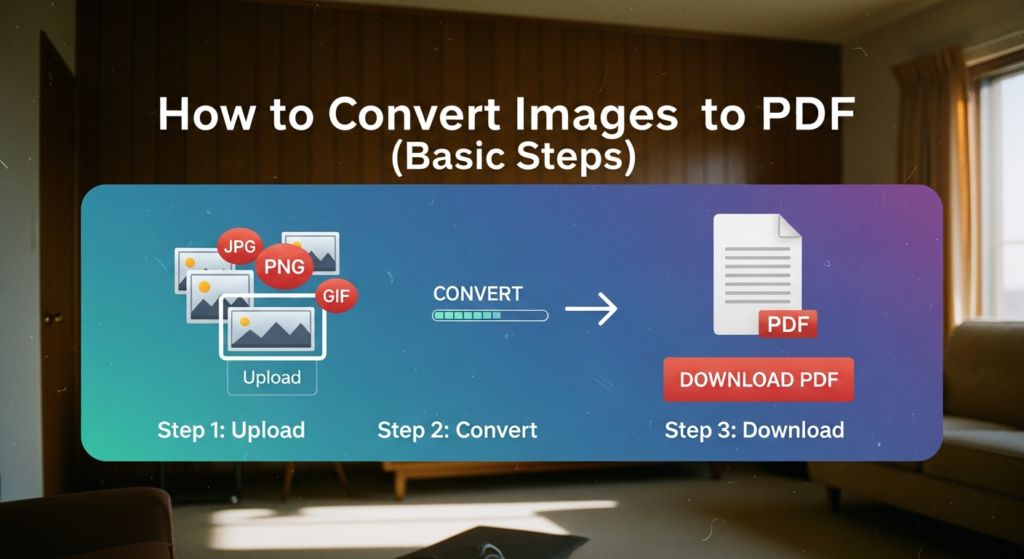
- Upload one or more images
- Put them in the order you want
- Select page size or layout
- Start the conversion
- Download your PDF file
After converting your images to PDF, you can reduce file size using our Image Compressor tool.
Single Image vs Multiple Images to PDF
Single image in PDF
Best when you need to save just one image as a document page like a scanned certificate or a signed form.
Multiple images in PDF
Best when images represent pages of a document like notes, Agreements and reports. Each image becomes its own PDF page.
Tips for Better Image to PDF Results
- Use clear high resolution images.
- Crop any unwanted edges before converting.
- Put images in the correct order first.
- Keep the same orientation.
- Avoid mixing very small and very large images
- Preview before downloading the final PDF
Benefits of Using Tools Club Kit Online Image to PDF Tool
Here’s why online tools are popular:
✔ No software installation required
✔ Works on mobile and desktop
✔ Fast processing
✔ Free to use
✔ Secure file handling
✔ Supports multiple image formats
You can convert files anytime, anywhere — all you need is an internet connection.
Why Choose Tools Club Kit Image Resizer?
Here’s what makes Tools Club Kit different:
✔ 100% Free
✔ No Sign-up Required
✔ No Software Installation
✔ Fast Processing
✔ Works on Mobile & Desktop
✔ Secure & Private
✔ Easy Interface
Our goal is to make image editing simple for everyone.
Tools Club Kit Images converter Safe?
Yes. Your images are processed securely.
-
No login required
-
No personal data collected
-
Secure HTTPS connection
-
No malware or hidden software
Your privacy and safety are important to us.
When Should You Change Images to PDF?
You should change images to PDF when:
-
Sending school work or office files
-
Sharing ID cards or scanned papers
-
Making digital books from pictures
-
Sharing event pictures as one document
-
Printing many pictures in one file
Common Mistakes to Avoid
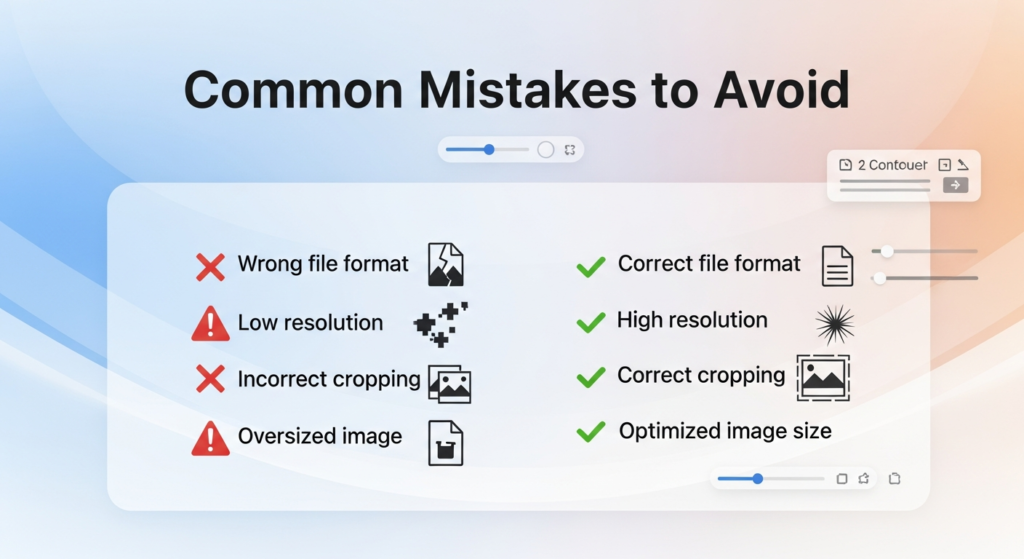
- Using too much compression for text heavy documents.
- Forgetting to check margins.
- Not previewing before sharing
- Uploading blurry images and expecting clear PDFs.
- Wrong page orientation.
- Images in the wrong order for multi pages files.
Final Thoughts
A simple image to PDF converter is one of the bet and most useful tool for everyday in life for digital work. It turns loose image files into a solid documents that works reliably everywhere. The process is fast and friendly useful for both personal or professional needs.