
toady in digital word images play a powerful role in digital content. Whether you run a blog, manage an online store, post on social media, or design marketing materials, image quality and size matter.
However large images can slow down your website, affect SEO rankings, and reduce user experience. That’s why resizing images correctly is essential.
With the Tools Club Kit image Resizer online you can resize images online quickly, safely, and without losing quality no need to installation required.
What Is an Image Resizer?
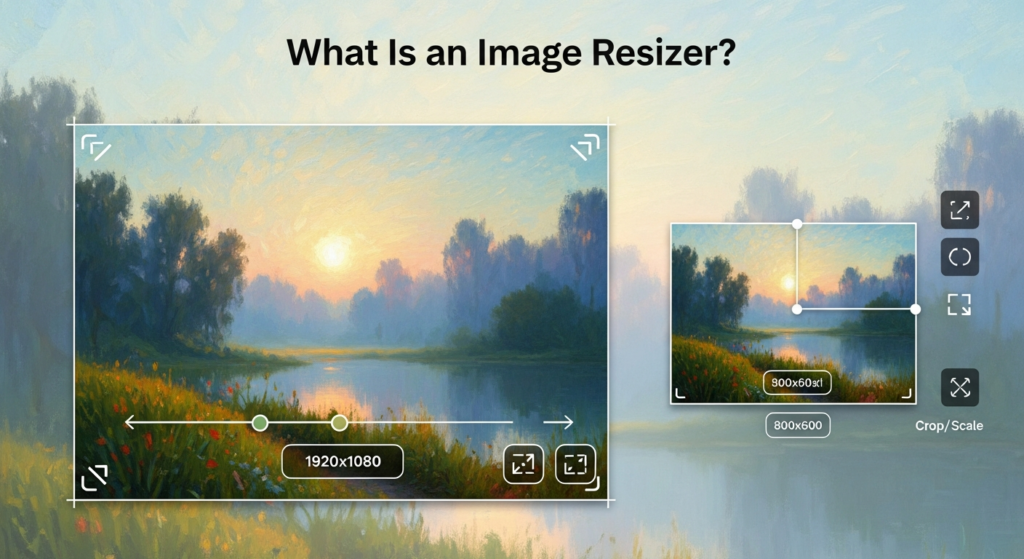
An image Resizer online is an online tool that allows you to change the width and height (dimensions) of an image without changing its visual content.
For example:
-
Resize a 5000×3000px image to 1200×800px
-
Adjust a product photo for your website
-
Resize a picture for Instagram or Facebook
-
Make an image smaller for faster loading
The Tools Club Kit image resizer works directly in your browser. You simply upload your image, enter new dimensions, and download the resized version instantly.
No software. No registration required. 100% free.
Why Resizing Images Is Important
image resizing also reduces file size for uploads, Saves storage space or ensures your images meet platform size limits. It helps you match social media formats and makes it easier to send images quickly by email or chat. Many peoples upload images without resizing them first and this can cause problems. When images are properly resized they help improve website speed and make pages load faster.
Faster Website Speed
Page speed is a major ranking factor for Google. Oversized images slow down your website.
Resizing images helps:
-
Reduce file size
-
Improve loading time
-
Increase SEO performance
-
Lower bounce rate
Better User Experience
Correct image dimensions prevent:
-
Distortion
-
Blurry visuals
-
Layout breaking
-
Cropped content
A properly resized image looks professional and clean.
Improved Social Media Appearance
Every platform requires specific image dimensions. Incorrect sizes can:
-
Crop important parts
-
Reduce quality
-
Look unprofessional
Resizing ensures your content looks perfect everywhere.
Save Storage Space
Smaller images take less space on:
-
Hosting servers
-
WordPress websites
-
Cloud storage
-
Mobile devices
This helps reduce hosting costs and improves efficiency.
When You Should Resize an Image
Resizing is useful when posting on social media, Creating thumbnails, Adding images to a blog post and sending images by email. You should resize an image when the file is too large to upload or when a website requires specific dimensions. It’s also important if you want faster page loading and better performance.
Resize vs Compress: What’s the Difference?
Many users confuse resizing with compressing.
Here’s the difference:
Resize
Changes image dimensions (width & height)
Compress
Reduces file size (KB or MB) without changing dimensions
For best results, use both resizing and compression.
Tools Club Kit offers tools for both tasks.
How to Resize Images Without Losing Quality
Follow these simple steps using Tools Club Kit:
Step 1: Open Tools Club Kit Image Resizer tool
Visit the Image Resizer tool page.
Step 2: Upload Your Image
Upload JPG, PNG, or WebP files.
Step 3: Enter New Dimensions
Choose:
-
Custom width & height
-
Preset social media sizes
Step 4: Enable Aspect Ratio
Always keep “Maintain Aspect Ratio” enabled to prevent stretching.
Step 5: Download Your Image
Click resize and download your optimized image instantly.
The process takes only a few seconds.
Common Image Resizing Mistakes to Avoid
Avoid these mistakes:
❌ Stretching images without aspect ratio
❌ Making images too small (pixelation)
❌ Uploading extremely large files
❌ Using wrong format
❌ Ignoring mobile optimization
Always test how your images appear on both desktop and mobile devices.
Common Image Sizes for Different Uses
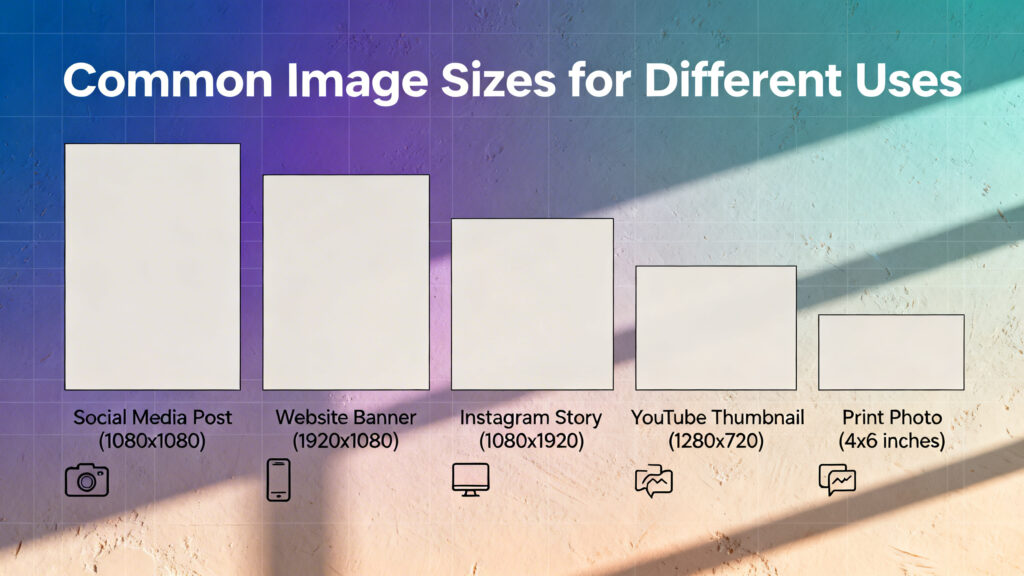
Website blog images
1200 to 1600 px width
Social media posts
1000 to 1200 px width
Thumbnails
300 to 500 px width
Product listings
1000 px or more (depending on zoom needs)
Email attachments
800 to 1200 px width
Best File Formats After Resizing
JPEG: Best for photos and blog images
PNG: Best for graphics and text images
WEBP: Best for websites needing small file sizes
GIF: Best for simple animations.
Why Choose Tools Club Kit Image Resizer?
Here’s what makes Tools Club Kit different:
✔ 100% Free
✔ No Sign-up Required
✔ No Software Installation
✔ Fast Processing
✔ Works on Mobile & Desktop
✔ Secure & Private
✔ Easy Interface
Our goal is to make image editing simple for everyone.
Tools Club Kit Image Resizer Safe?
Yes. Your images are processed securely.
-
No login required
-
No personal data collected
-
Secure HTTPS connection
-
No malware or hidden software
Your privacy and safety are important to us.
Quick Workflow for Bloggers and Content Creators
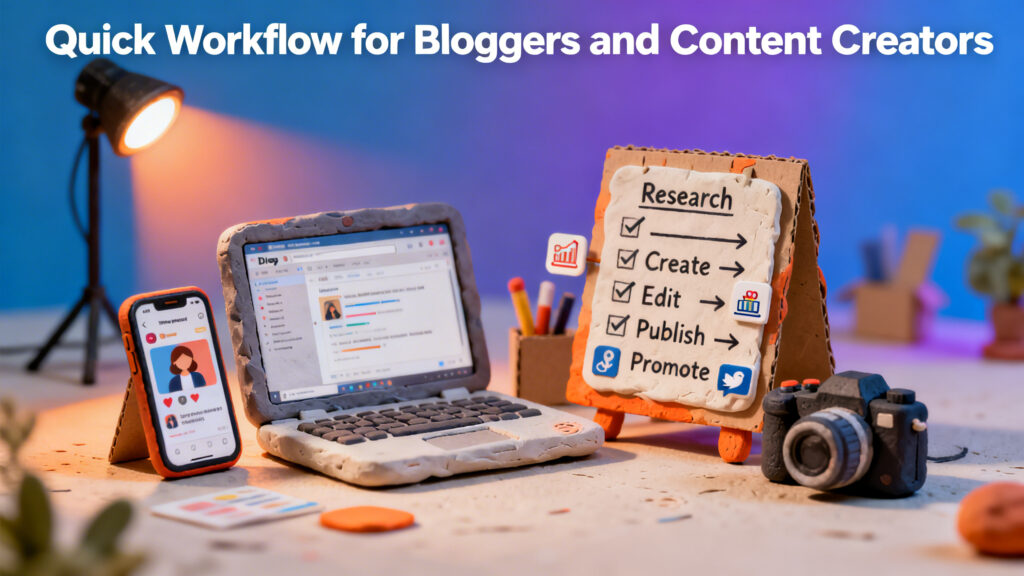
Here is a simple workflow you can follow every time
Start by choosing your best original image. Resize it according to your platform’s requirements and make sure to keep the aspect ratio locked so the image doesn’t look stretched.
Final Thoughts
Resizing images properly is one of the most important steps in website optimization and content creation.
Using the Tools Club Kit Image Resizer, you can:
-
Resize images without losing quality
-
Improve website speed
-
Optimize for SEO
-
Enhance social media visuals
-
Save storage space
Start resizing your images the right way — fast, free, and secure.